
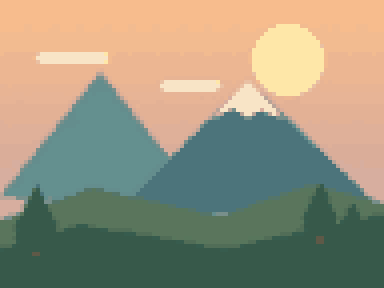
A little mountain escape
A sunset illustration becomes a small, limited-color landscape.
96 px / 24 colors
Your photos, with a little retro soul.
Turn images into pixel art. Pick your resolution, find your colors, and make every little square count.
or drop a file on the canvas
PNG, JPG, WebP · up to 20 MB
Your images stay on your device. Everything happens in your browser.
A little inspiration
Start with an example, find your favorite settings, then make something of your own.
A sunset illustration becomes a small, limited-color landscape.
A simple silhouette keeps this ginger cat readable at a small size.
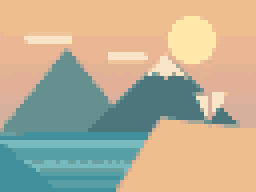
Try the same sea and sky with a deliberately restricted palette.
Compare petals and leaves as you change the logical resolution.
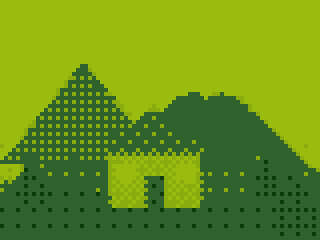
The Game Boy-inspired palette turns a forest scene into four tones.
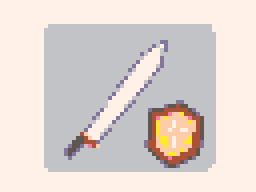
Turn an original sword and shield illustration into a style reference.
Original demo illustrations, converted with this tool. These are examples, not user submissions. Select “Original” on the canvas to compare.
From picture to pixels
The Pixel Art Generator keeps the whole process on one canvas. Change a setting, look at the result, and keep experimenting until the image feels right.
Choose a PNG, JPEG, or WebP file, drag it onto the canvas, or paste an image from your clipboard. Start with a clear subject and a simple background. The original stays on your device, and you can switch back to it whenever you want a comparison.
Set the logical pixel width, using a preset or the slider. A smaller grid makes bigger, bolder blocks. A larger grid preserves more detail. Keep your image's proportions, or choose a centered square crop when you are making an avatar.
Use colors extracted from your picture, a fixed retro palette, or your own HEX colors. Compare clean color blocks with two dithering methods. The preview updates in the same workspace, so there is no need to jump between configuration and download screens.
Download a PNG at its native logical size or enlarge it by four or eight times. Integer scaling keeps the squares sharp instead of smoothing the edges. The Pixel Art Generator preserves your source transparency and adds no watermark.
A good conversion needs more than a mosaic filter. Use the Pixel Art Generator to explore resolution, a consistent palette, and the texture between colors.
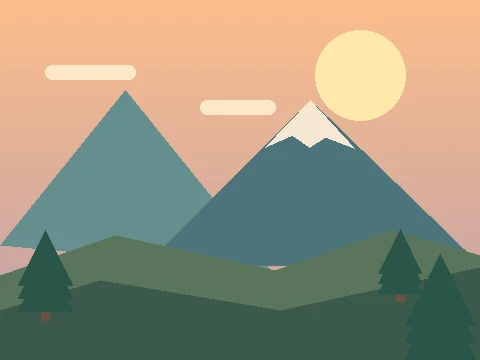
The original view is your reference. The converted view shows the actual small-grid result, enlarged for a comfortable preview. Compare the mountain outline, the sky, and the tree shapes. If a detail disappears, increase the logical resolution or crop more closely around the subject before importing it.
These are original demo illustrations processed by the same tool you can use above. They show an achievable conversion, rather than a hand-drawn result presented as automatic output.
Logical resolution describes the number of colored squares in the artwork. Download resolution describes how large those squares appear in the saved file. They are separate choices. A 32-pixel-wide design exported at eight times its size is still a 32-pixel design, displayed across 256 image pixels.
The Pixel Art Generator keeps your aspect ratio unless you select square cropping. Its longest logical side is capped at 256 pixels, so very tall images may have a smaller width than the number you requested.
Automatic color reduction finds a limited set of colors from the input. Start with 16 or 24 colors and look for a readable silhouette. Fewer colors often make an illustration more coherent, but complicated photographs may need a larger budget to avoid losing important details.
For a specific mood, try the four-tone Game Boy-inspired preset or the PICO-8 palette. With a custom palette, enter two to 64 different HEX values. The result is mapped to those colors, and the swatches show the colors actually used.
Dithering places colors next to one another to suggest intermediate tones. Floyd-Steinberg distributes color differences across neighboring pixels. Bayer uses a regular ordered pattern. Neither is automatically better: a sky can benefit from added texture while a tiny face becomes harder to read.
Start with dithering off, then compare both methods at the same size and palette. The Pixel Art Generator makes this a reversible setting, so you can judge the effect rather than commit to it before seeing the image.
A transparent PNG or WebP can retain its alpha channel through conversion and PNG export. The checkerboard on the canvas helps you see transparent areas. It is a preview background and is not baked into your downloaded artwork.
JPEG does not contain transparency. This tool preserves an existing transparent background; it does not automatically cut a person or object out of a photograph. The optional preview grid also stays out of the saved PNG.
Choose your next little project
For an avatar, prepare a close crop with a readable face and enough contrast between the subject and the background. Start at 64 pixels wide, keep a moderate color count, and compare the original. A very small grid can remove eyes and other identifying details, even when the enlarged preview looks attractively blocky.
A photo to pixel art conversion is a starting point. You may want to refine the facial features in a separate drawing editor before using the result as a finished profile image. Choose the square crop only when the center of the source contains the subject you want to keep.
Use the Pixel Art Generator to prototype the mood of a landscape, an inventory item, or a character reference. A fixed palette can help different source images feel related. Inspect silhouettes at native size before assuming that a design will read clearly inside a game.
Automatic conversion does not create animation frames, a seamless tileset, or an engine-ready sprite sheet. It also cannot understand the importance of a particular edge. Treat the output as a reference or a base for deliberate hand editing, especially when making small game assets.
Turn on the grid to inspect individual cells while learning how color blocks form a shape. Simple flowers, hearts, and small animals make useful exercises because you can see the effect of changing only a few squares. Try reducing the same example to 32 pixels, then return to 64 and compare its outline.
The current download is a digital PNG. It is not a numbered PDF pattern, a Minecraft materials list, or a match to a physical bead or brick color range. Check those additional requirements separately before planning a real-world build.
Photographs often contain many similar shades. A limited palette encourages you to notice larger shapes and differences in brightness. Try four tones for a strong graphic result, or use your own brand colors to explore how an existing illustration behaves within a fixed color system.
The Pixel Art Generator does not transfer rights from the source image. Upload a picture you own or are allowed to modify, and check its license before publishing or selling the result. Changing the style of an image does not make its underlying copyright disappear.
Conversion runs locally in your browser. There is no account, cloud image library, or image upload step. The current Pixel Art Generator is free to use, including PNG downloads, with no watermark or subscription. Your working image is temporary, so save anything you want to keep before reloading or closing the page.
Use a static PNG, JPEG, or WebP up to 20 MB and below 25 megapixels. Animated formats, SVG, and text prompts are not supported. The longest logical side is limited to 256 pixels; native, 4×, and 8× PNG downloads use nearest-neighbor scaling. A large file or an unusually detailed photo can still take longer on a mobile device. If the result is muddy, simplify the source or crop to one subject instead of adding more effects.
This Pixel Art Generator applies image-processing algorithms, not a generative AI model. There is no server queue or prompt-based content generation. For a better image to pixel art result, start with clear shapes, use enough logical pixels, and compare a few palettes before downloading.
Practical answers about using the Pixel Art Generator and saving your work.
Upload a supported image or choose an example. Adjust pixel width, select a color palette, and compare dithering on or off. Look at the image at a small size as well as in the enlarged preview. When you are happy, choose a download scale and save the PNG. All of these controls are on the same page.
Yes. The current converter, its examples, and PNG downloads are free. You do not need to register, buy credits, or remove a watermark. The file-size and image-dimension limits are there to keep browser processing manageable. This release does not offer an optional paid export or subscription.
No image-processing upload takes place. Your browser reads the selected file locally and creates the result on your device. The site still needs ordinary hosting requests to serve its pages and public assets. Reloading or closing the tab discards your working session. Read the privacy policy for the difference between local image processing and website requests.
Yes. Choose a 16- or 32-pixel width and select the square crop to get a square logical image. With original proportions, the height follows the source image. Exporting at 4× or 8× enlarges the same artwork with sharp squares; it does not add new detail or change the logical grid.
Small grids cannot represent every feature in a detailed image. Start with a tight crop and a clear subject, increase the logical width, or give automatic color reduction more colors. Turn dithering off to inspect the underlying shapes. The Pixel Art Generator can simplify color and resolution, but it cannot decide which facial features or contours an artist would preserve.
Yes. Select Custom HEX colors and enter two to 64 unique three- or six-digit color values, separated by spaces or commas. For example, use #243c36, #a0bb8b, and #f5ecc9 for a small muted palette. Invalid values are explained beside the settings, and download remains unavailable until the palette is valid.
Off is useful for clean shapes and small icons. Floyd-Steinberg can make limited-color gradients appear less banded. Bayer gives a more regular patterned texture. Compare the same image with the same resolution and palette before deciding. For a very small character or logo, extra texture can reduce readability rather than improve it.
The PNG preserves transparency already present in the source. A JPEG or a photo with a solid background will keep that background. The checkerboard and optional grid are preview aids; neither is included in the artwork. Use the Original view to understand whether transparency was present in your input.
This version converts existing images. It does not generate a scene from a prompt, draw animation frames, or include a manual pixel brush. You can create a reference with the Pixel Art Generator, download it, and continue editing in your preferred drawing software. There are no links to unfinished tools in the public navigation.
The tool does not claim ownership of your source image or its converted output. Your permission to publish, sell, or otherwise reuse the result depends on the rights attached to the original material. Only upload images you own or have permission to modify. Review the terms of service and project information before relying on a result for a particular use.